
A welcome worth reading
Most greeters give you one line of text and a colour picker. This one gives you the builder. Design the message, save it, and every new member sees it.
Two builders come with it
An embed builder and a Components-V2 builder, both inside Discord. Build a message, save it, then pick it for the welcome.
A different GIF every time
Right-click a message, open Apps and save its GIF to the pool. Each greeting picks one at random.
It waits for the rules screen
A member who has not accepted your rules yet is greeted when they accept, not the moment they appear.
Goodbyes as well
Its own channel, its own design, its own mentions. Turn it on separately, or leave it off.
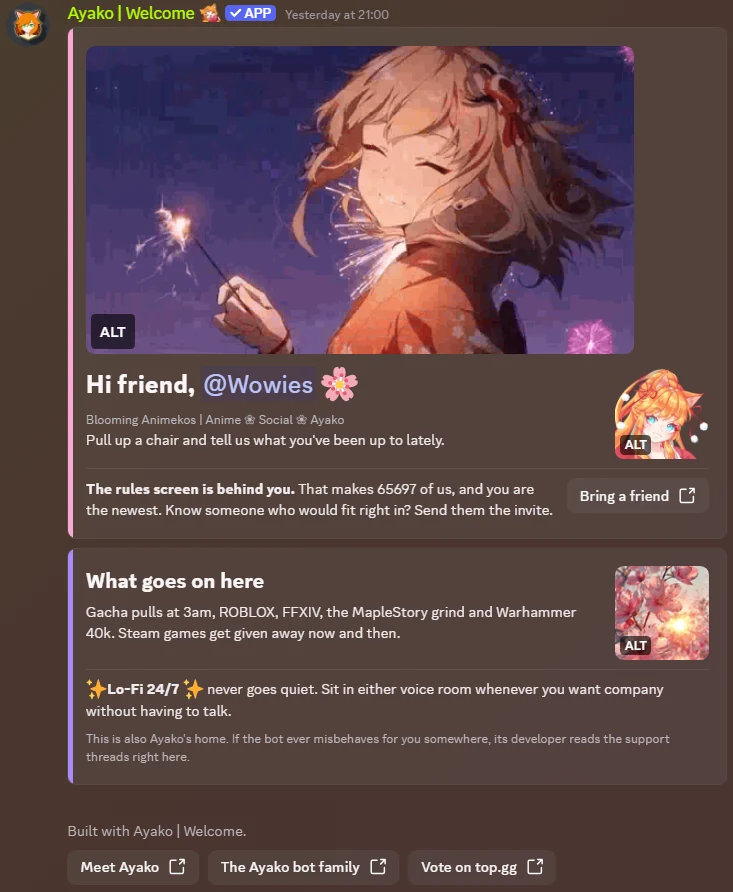
The message is yours to design
this is the whole product
- 01
Open a builder
/embed-builder create for a classic embed, or /component-builder create for a Components-V2 message with buttons, sections and image galleries. Both come with the bot.
- 02
Save it under a name
The design is stored with your server, so you can reuse it, send it by hand, or edit it later.
- 03
Pick it from the list
In /settings automation welcome, choose it in the Saved Design field. Edit the design later and the greeting uses the new version.
- 04
Press Test
The test button sends the real message to the real channel, with you standing in for the new member. It works even while the greeting is still switched off.
Embeds and Components-V2 messages share one list, and each greeting holds one design from it.
Thirteen things the bot fills in
Write these anywhere in your design. They work in every field, including inside buttons and nested sections.
A different image every time
Save images into the pool with a right-click on any message. Every greeting draws one at random, and goodbyes have a pool of their own.
Fill it with a right-click
Right-click a message, open Apps and choose Save GIF to welcome. Every image in it is saved, attached or linked. You need Manage Server.
Tenor links are converted
A Tenor share link is saved as the actual GIF file. The bot reads it from Discord’s link preview, so the preview needs to have loaded first.
Look through it any time
Open /settings automation welcome-gifs to see the pool, five per page with previews. Any image can be removed from the menu, and it stays until you remove it.
You decide where it lands
Put {{gif}} in your design and the image goes exactly there. Leave it out and the bot attaches it at the bottom.
the reply is just for you and says how many it saved
Everything sits under one command
/settings automation, inside Discord, with four subcommands: welcome, goodbye, welcome-gifs and goodbye-gifs. There is no dashboard to log into.
- The channel the message is sent in
- A saved design, chosen from a list of your embeds and Components-V2 messages
- Whether the joining member is mentioned
- Roles to mention with the message
- Members to mention with the message
- A test button that sends the real thing
- The image pool under welcome-gifs, with previews and a remove menu
- A separate pool for goodbyes under goodbye-gifs
Goodbyes have their own channel, design, mentions, test button and image pool. A goodbye cannot mention the member who left, because they are no longer there to be pinged, and none is sent for a member who was kicked, banned or removed by a prune.
The thing most welcome bots get wrong
If your server has a rules screen, a new member shows up twice. Once the moment they arrive, still pending, and again when they accept your rules. Greeting them on the first one means greeting an empty profile that may never come back, and your welcome channel fills with messages for people who never joined.
This bot notes the arrival and says nothing. When the member accepts, it greets them properly. If they leave while still pending, they get no goodbye either, because as far as your server is concerned they were never really there.
Questions people ask
Do I have to build something before it works?
No. With no saved design it sends a clean default line, "Welcome @member to Server". The builders are there for when you want more than that.
What happens if my server has a rules screen?
Members arrive twice: once as pending, once when they accept. The bot remembers the first one for a week and greets on the accept. Someone who never accepts is never greeted, and someone who leaves while still pending gets no goodbye either.
What is the difference between the two builders?
The embed builder makes a classic Discord embed. The component builder makes a Components-V2 message, which can hold buttons, sections and image galleries. Each greeting uses one design, picked from a list that holds both kinds.
What permissions does it need?
Four: View Channel, Send Messages, Embed Links and Mention Everyone. The last one is only so role mentions with the greeting actually ping. It cannot ban, kick or time anyone out.
Give people a reason to say hello back
Ayako | Welcome brings its own builders, so the message can look like your server rather than like a default. Free forever, with no paid plan.
4 permissions. No dashboard. Free.